View Leads
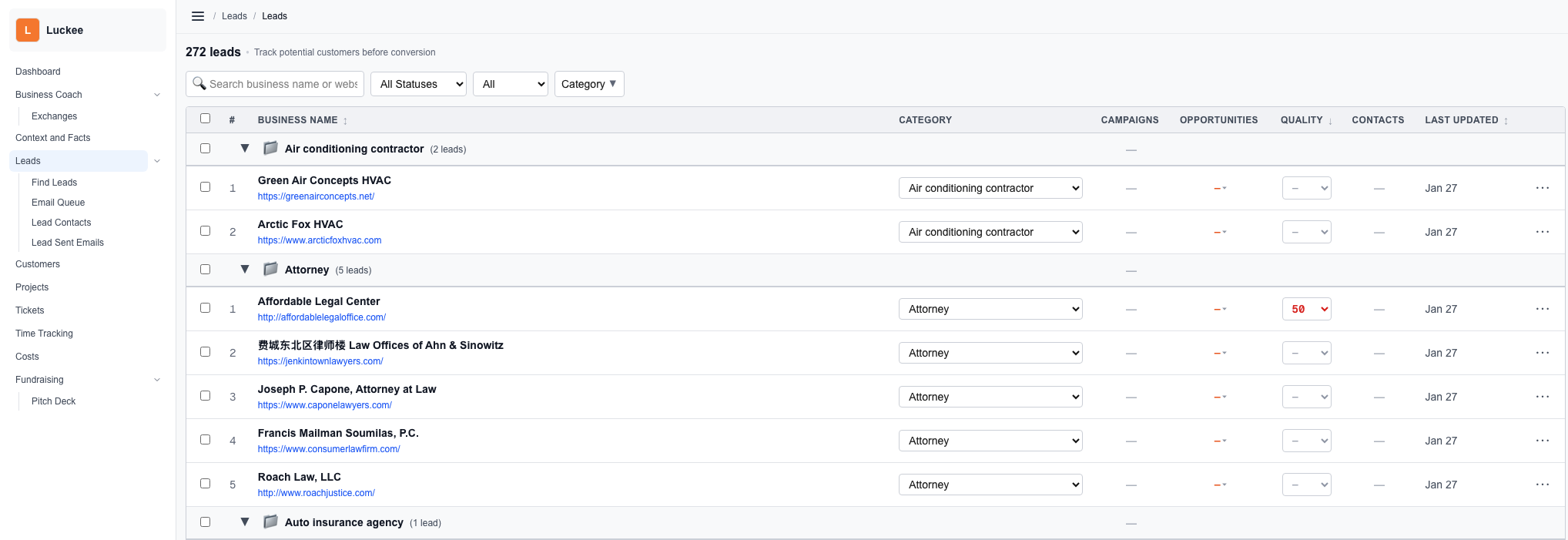
In the open-source app, the main leads experience lives at /leads (dashboard route app/(dashboard)/leads/page.tsx). When you are signed in, the page loads your leads from the API, hydrates filter state from local storage, and renders the Leads package: header, filters, grouped table, and add-lead modal.
Header
The header shows a live lead count and a short tagline. Action buttons (in LeadsHeaderButtons) cover flows such as add lead, research leads, and bulk helpers like auto-categorize uncategorized leads.
Filters
LeadsFilters combines status, multi-select categories, debounced search, quality filter, and website presence filter. Choices persist via readPersistedLeadsFilters / writePersistedLeadsFilters so returning to /leads restores your working set.
Grouped table
Rows are organized with CategoryGroup (grouped table): each group is a lead category from your data (or Uncategorized when a lead has no category). Expand or collapse groups, select rows with checkboxes, and use the row menu for per-lead actions.
Add lead
AddLeadModal adds a new lead without leaving the list. Open a row when you are ready to dig in on the lead detail screen.
Lead workbench
From the list you can open the lead workbench side panel (summary, research snippets, shortcuts) so you can skim and decide what to do next without losing your place. The same workbench patterns also appear alongside full lead detail.
Opening a lead
Click a lead to open LeadDetailPage: header, research overview, opportunities and workbench columns, then contacts and costs. See the Lead detail doc for section-by-section behavior.
Related areas
- Find Leads — discover and add leads (
/leads/find) - Lead Contacts — people tied to leads (
/lead-contacts) - Email Queue — draft and send mail from one place (
/lead-contact-email-queue) - Sent Contact Emails — history (
/lead-sent-emails)